

Pivot Table Widget (CX)
What's on this page
About Pivot Table Widgets
Warning: This widget is being deprecated and is no longer supported. Brands created after April 9, 2026 cannot create pivot table widgets. For the same functionality with a more flexible setup, use the table widget.

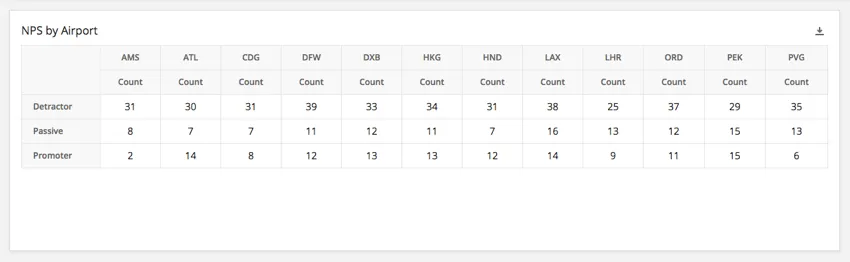
The pivot table widget allows you to create a crosstab between multiple fields. Each cell displays the chosen metric value that corresponds with both the row and column value for that cell. For example, you may wish to display the number of respondents from a given airport that fall into each of the three NPS categories.
Field Type Compatibility
The pivot table widget is compatible with the following field types:
- Number Set
- Text Set
- Multi-Answer Text Set
- Drill Down
- Generic Group
- Measure Group
Only fields with the above type will be available when selecting the rows and columns for the pivot table.
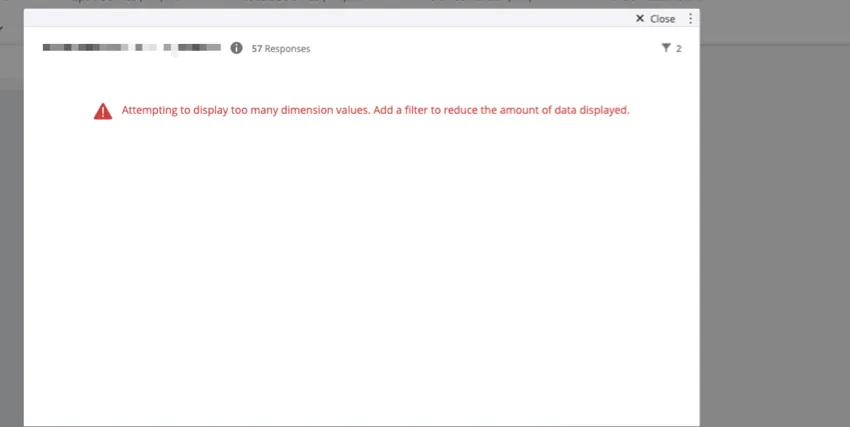
Qtip: Pivot tables have a limit of 8,000 dimensions (or cells) within the table. To calculate the dimensions in a pivot table, multiply the number of fields values in the table’s rows by the number of metrics used as the table’s columns. For example, let’s say you display two fields, each with 60 values. You also display 5 metrics. To calculate the number of dimensions, multiply 60 x 60 x 5 = 18,000. Since this is over the limit, the table will display an error. To reduce the number of dimensions in your pivot table, either remove some rows and columns, or add a widget filter.

Widget Customization
For basic widget instructions and customization, visit the Building Widgets support page. Continue reading for pivot table-specific customization.
Formatting Rules
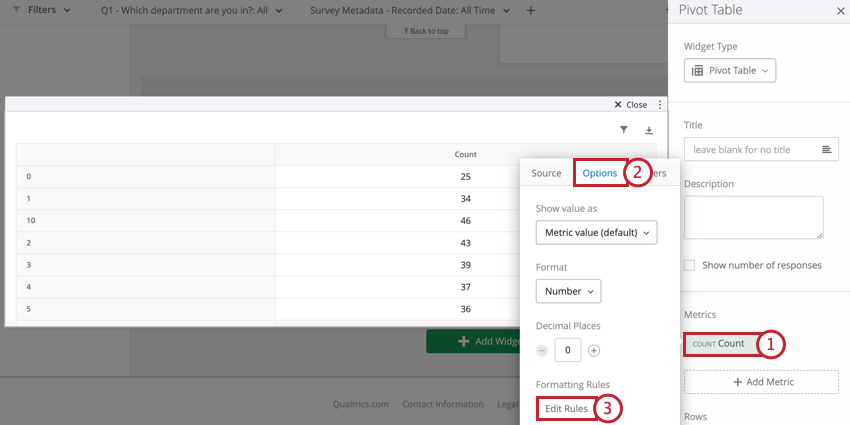
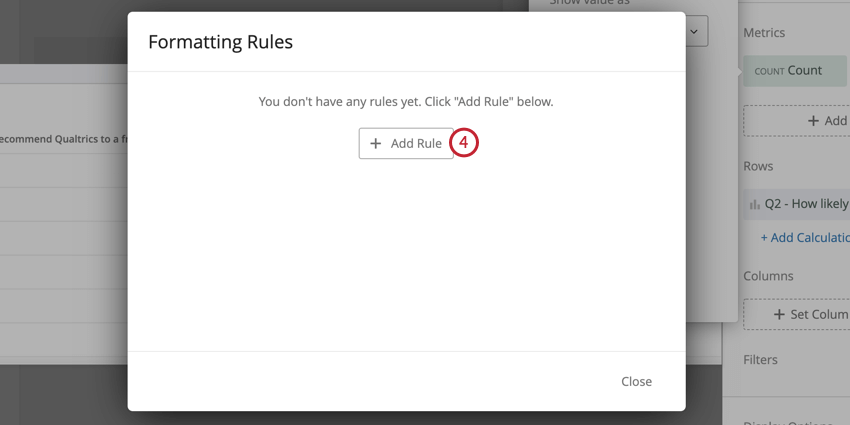
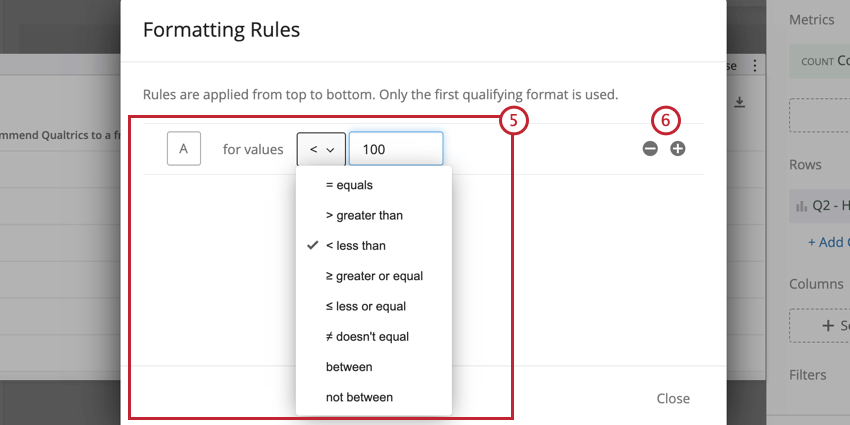
Adding formatting rules to your metric allows you to specify how values in a certain range are formatted on the pivot table – for example, bolding results or changing their color once they fit within a certain numeric range. This is useful if you would like to be able to easily differentiate cells on the table based on their value. To access formatting rules:
Display Options
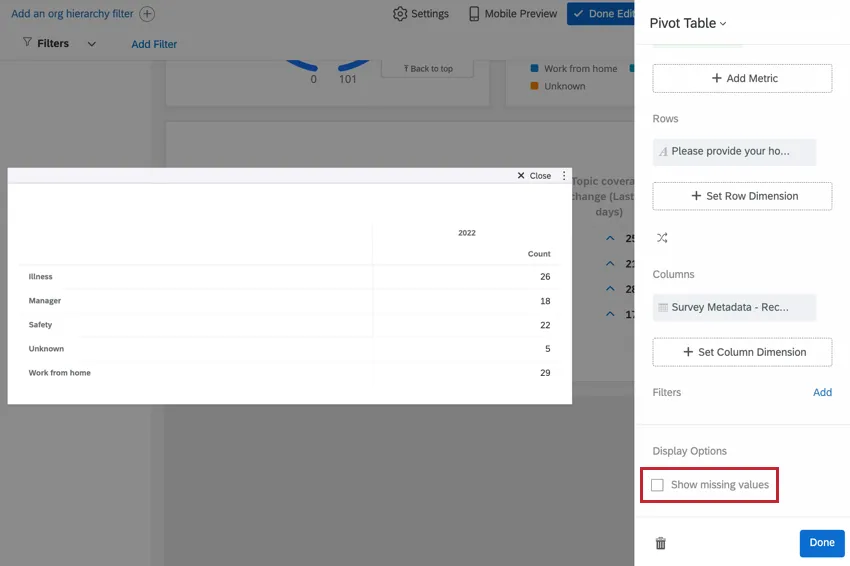
If your pivot table contains rows of data that have no corresponding values in the selected columns, you can hide these rows by leaving Show missing values unchecked. This option is useful if you want to consolidate your pivot table and omit rows with no corresponding data.
Significance Testing in Pivot Tables
You can enable significance testing in a pivot table when you use the top box/bottom box metric and a single value on the x-axis. Once you have these, follow the steps below to enable significance testing.
Qtip: You can get a single value on the x-axis by having a top / bottom box metric, no row dimension, and whatever you want set for your column dimension.
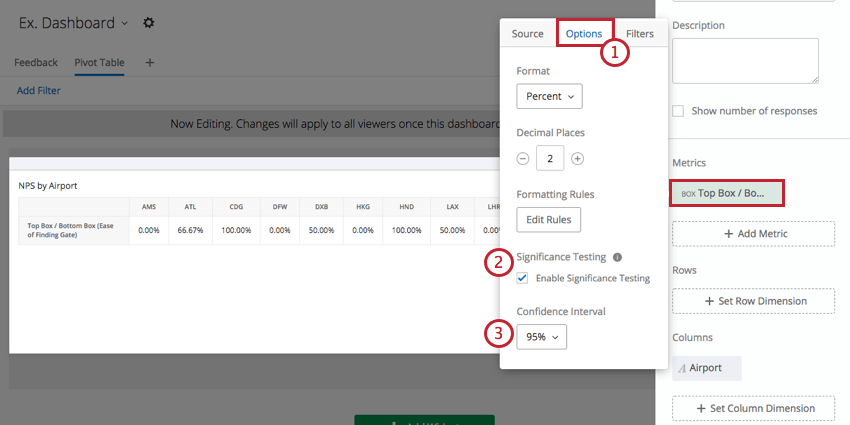
The confidence interval indicates how confident you would like to be that the results generated through the analysis match the general population.
Once you have enabled significance testing, you might notice red and green arrows in your pivot table.
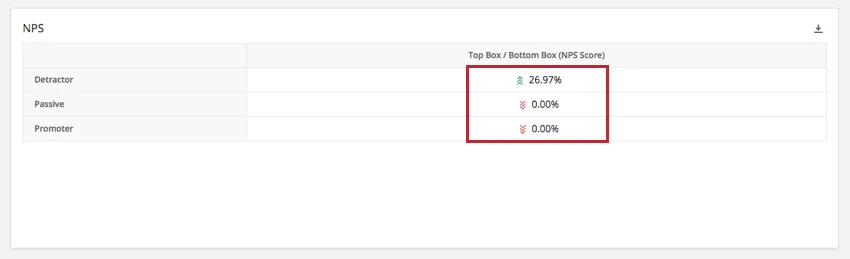
The arrows are determined by the adjusted residual of each cell. Pivot tables show up to three arrows, depending on the p-value calculated from the adjusted residual. A different number of arrows will be shown depending on the degree of significance of the result. Specifically, one arrow is shown if the p-value is less than alpha (?) where ? = (1 – Confidence Interval), two arrows if the p-value is less than ?/5, and three arrows if the p-value is less than ?/50.
For example, if your confidence level was set to 95%:
p-value <= .05: one arrow
p-value <= .01: two arrows
p-value <= .001: three arrows
That's great! Thank you for your feedback!
Thank you for your feedback!